How-to guide

TL;DR
To connect Claude to Xnurta MCP, add https://mcp.xnurta.com/mcp as a custom connector, sign in with your own Xnurta login and approve the ad accounts it can see. This guide is for Amazon advertisers and agency teams who want Claude, ChatGPT or another MCP client working on live Sponsored Ads data. You write no code.
You need an Xnurta login, an AI assistant that speaks MCP, and, on Claude Team or Enterprise, an Owner who adds the connector once. Xnurta MCP connects Claude, ChatGPT and other MCP clients to your Xnurta data. You sign in with your own login, so the AI sees only the ad accounts that login already carries, main accounts and sub-accounts included.
You add Xnurta as a custom connector and sign in through your browser. These three clients cannot configure MCP themselves, and local MCP config files do not exist in Cowork or claude.ai, so the connector is the only road in. On a Free, Pro or Max account, you do it yourself:
https://mcp.xnurta.com/mcp and click Add.It takes two stages, because only an Owner can add a connector for the whole organization. If you are a member and cannot find "Add custom connector," that is expected. Ask your Claude admin to do stage one.
https://mcp.xnurta.com/mcp and click Add. Leave Advanced settings empty. No OAuth Client ID or Secret is needed.Stage two stays personal on purpose. Adding the connector for the organization does not widen anyone's access, because every member still sees only what their own Xnurta account allows. Anthropic's help center covers who can add connectors in Get started with custom connectors using remote MCP.
You ask your assistant to install them, in a new chat, after the connector is in. Adding a connector never installs skills. The connector gives the assistant access to Xnurta. The skills give it the routine for Xnurta tasks, such as what to pull for a weekly report or how to preview a change before it happens.
If the assistant connects MCP but skips the skills, send the repository link again and ask it to install them.
You send the agent one prompt and it configures MCP itself. This works for any client that can set up MCP on its own, including Claude Code and ChatGPT Codex.
When the client asks, choose OAuth, Sign in or Authenticate. Your browser opens the Xnurta authorization page. Sign in, review the permissions and ad accounts, approve, and go back to the client.
Codex takes the same one-prompt setup shown above. For ChatGPT apps, add Xnurta MCP with the same address, https://mcp.xnurta.com/mcp, and sign in when the Xnurta authorization page opens. What ChatGPT lets you add depends on your plan and workspace, so read OpenAI's Help Center article "Developer mode and MCP apps in ChatGPT" first.
Yes, in clients that can send a bearer token. Claude desktop, Cowork and claude.ai have no field for one, so use the connector there. In Xnurta:
Token: [paste your token].You ask the assistant to call get_user_authorized_context. If it returns your user ID and your authorized ad accounts, you are connected. Then ask something real, and name the account, a time window and a comparison. Comparisons turn numbers into conclusions.
Only if write access is on for your Xnurta account. Reading never changes anything. Writing comes in three kinds: AI-managed groups, edits to ads and campaigns, and creating Sponsored Products campaigns. Each kind has its own permission scope, so a token that can edit ads cannot necessarily create campaigns.
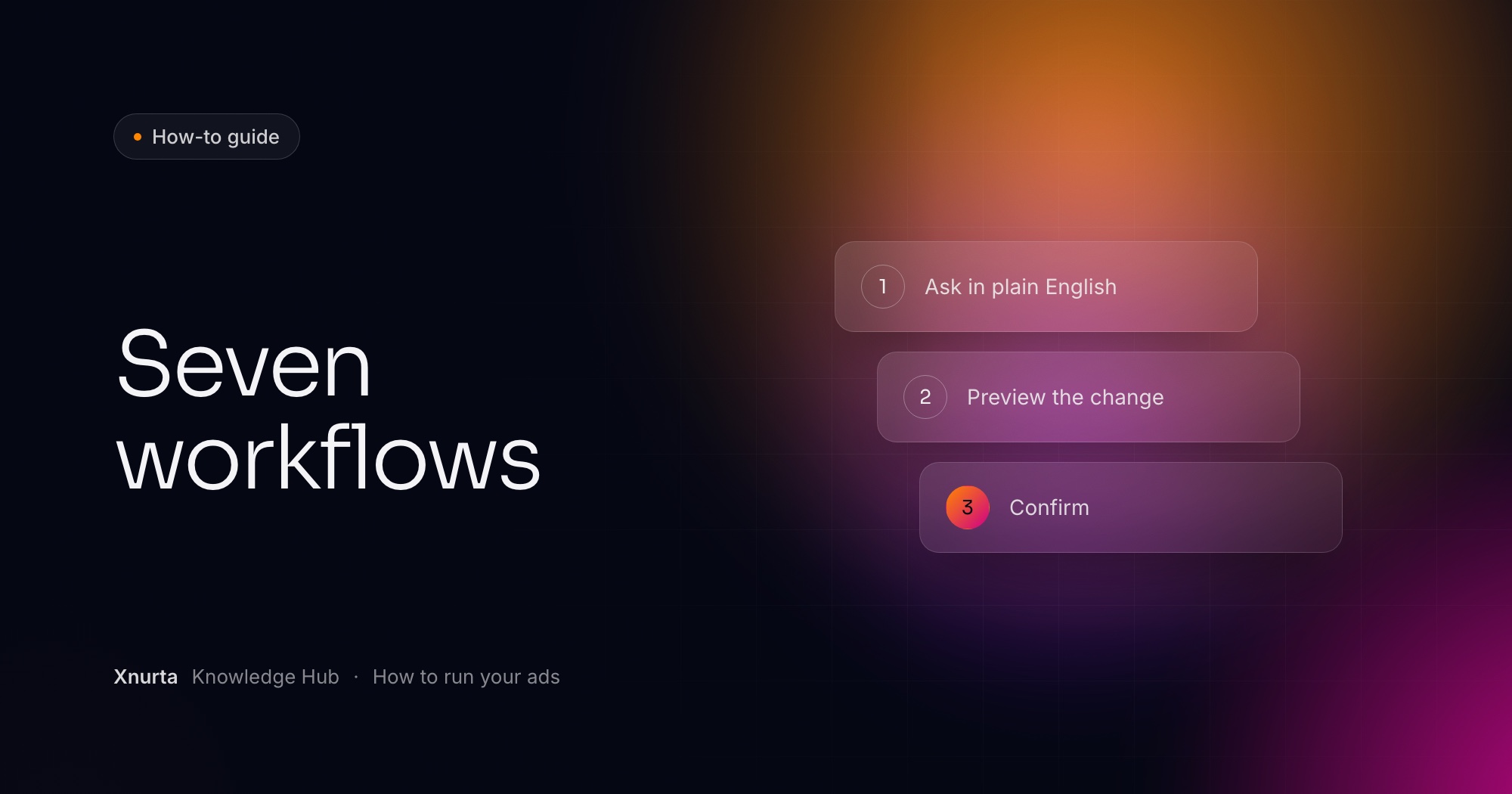
Changes to money, bids or archiving never run straight away. The assistant shows a preview first: which objects, and from which value to which value. It submits only after you confirm. Archiving cannot be undone, so pause a campaign if you only want it to stop. Read-only vs read-write MCP for Amazon advertisers explains which access to start with.
Most failures trace back to an expired authorization, a missing permission or a skipped step. Match what you see to the row below. Xnurta MCP troubleshooting: 12 errors and fixes covers more errors.
FAQ
Four. Add the connector, sign in and approve, install the skills, then check the connection. You write no code.
No. Claude desktop, Cowork and claude.ai connect through a custom connector and browser sign-in, and they have no field for a token. Tokens are for clients that need one.
The connector gives your assistant access to Xnurta. The skills teach it the routine for Xnurta tasks, such as what to pull for a weekly report. Adding a connector never installs them.
Each person signs in with their own Xnurta login. On Claude Team or Enterprise, an Owner adds the connector once and each member connects on their own, so nobody sees more than their account allows.
Yes. Both use the same address, https://mcp.xnurta.com/mcp, and your access follows your Xnurta login in either one.
Remove the Xnurta connector and add it again, because signing in again on the old connector keeps the old permissions. Then ask your assistant to update your Xnurta skills.
Keep going
Xnurta MCP
Xnurta MCP is for Xnurta customers only. Create your MCP connection directly in the Xnurta platform. New to Xnurta? Book a demo and we'll walk through your account with you.